A PHOTO-TO-PRINT GUIDE
Make a coloring page of your own pet.
A familiar face can make a simple coloring activity feel personal. Start with one clear photo, try the free outline, then check whether the shapes are easy to color before printing.
Try the free photo tool →1. Choose a photo with clear shapes
- Use a sharp photo with one pet filling most of the frame.
- Keep ears, paws and the outline of the body inside the image.
- Look for contrast between fur and background. Pale fur against a pale wall can leave missing edges.
- Crop out clutter in your photo app before opening the tool. Busy grass, blankets or furniture can become extra lines.
Choose a JPG, PNG or WebP file up to 10 MB. If your phone saves photos as HEIC, export a JPG or PNG copy in your photo app first; changing the filename extension does not convert the photo.
Use a photo you own or have permission to process. You do not need to include people or identifying information in the picture.
2. Try an outline, then decide how much detail to keep
Open the studio, choose your photo and start with Simple detail. The free mode traces edges on your device without sign-in or sending the photo pixels to a server. It does not understand which lines belong to the pet, so inspect eyes, ears and the body outline.
AI mode redraws the subject into simpler shapes. It requires sign-in and credits and sends a resized copy for AI processing. It can remove clutter, but can also change the pet’s markings or shape. Check the displayed cost and result before choosing it.
From a dog photo to a coloring page.
Compare the same photo with a free outline and an AI coloring page, both at Simple detail. These are actual PicCrayon outputs, shown without retouching.
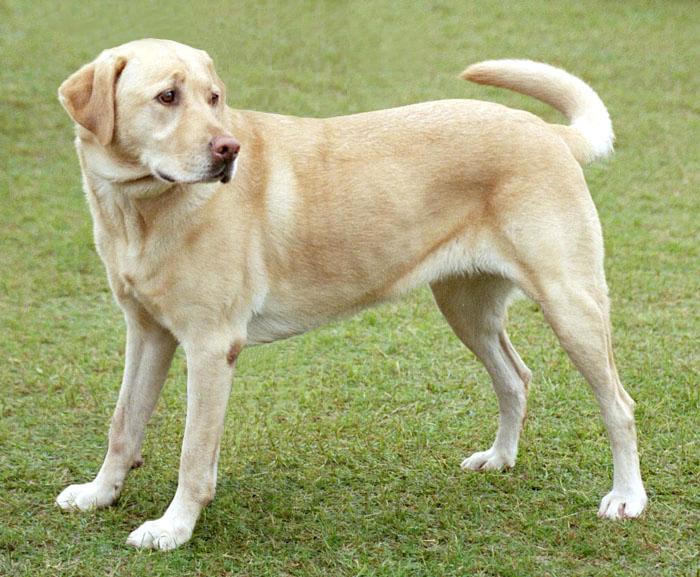
Original photo
One clear subject, with the whole dog in the frame.
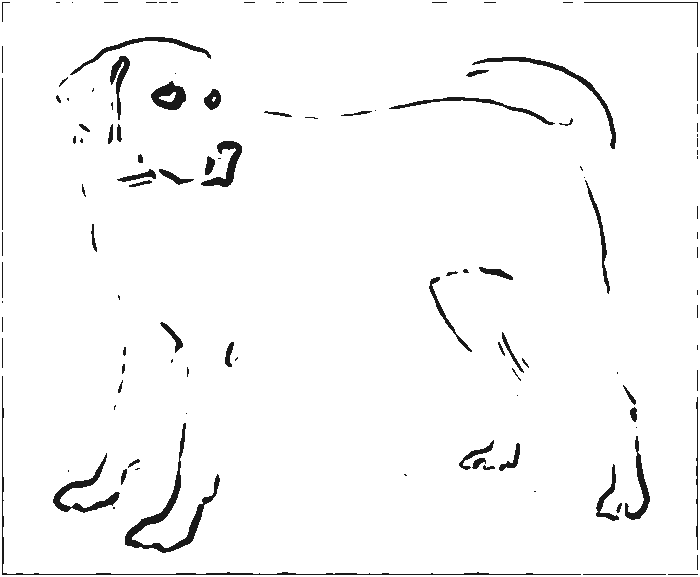
Free outline On your device
Traces visible edges. Low-contrast areas can leave gaps, as they do here.
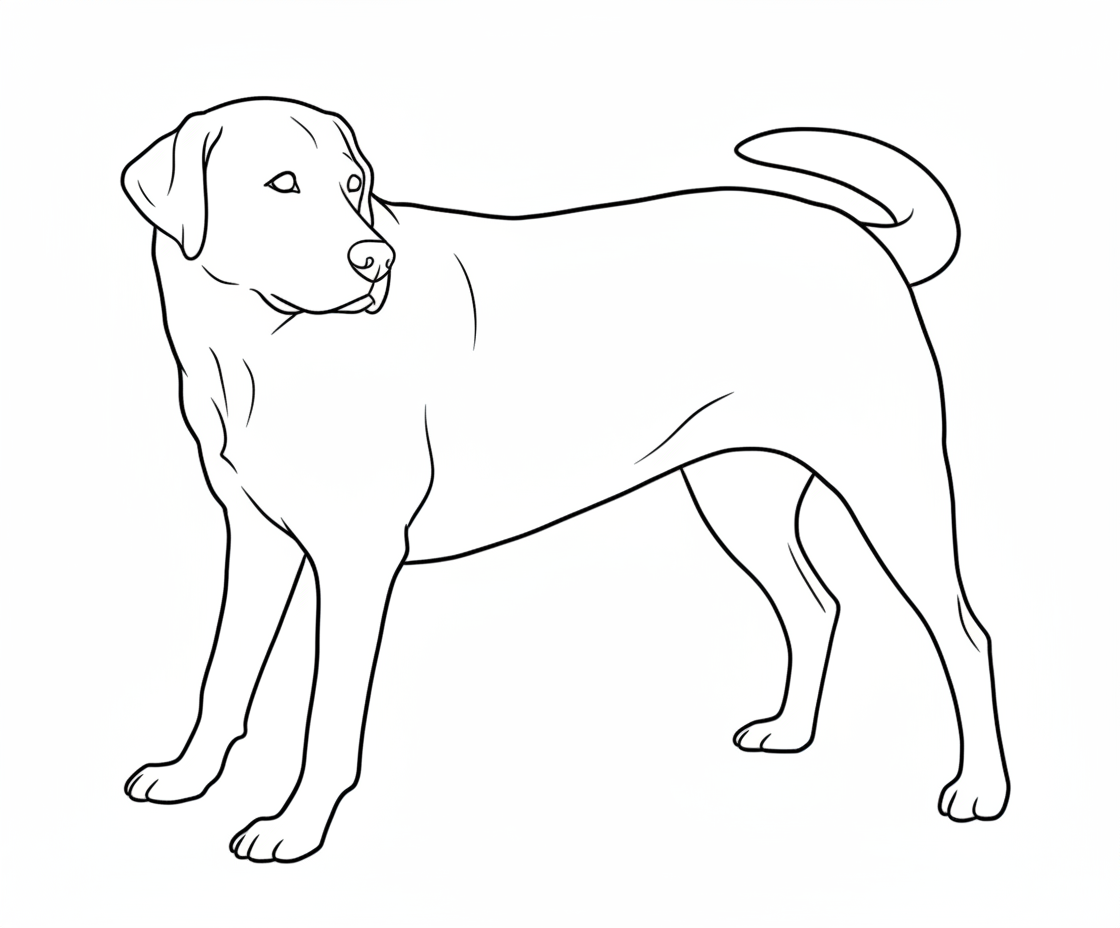
AI coloring page 1 credit
Redraws simpler shapes. In this example, the grass is removed and the outline is more complete.
Give your photo a good start
Choose a sharp, well-lit photo. Crop so one pet, toy or person fills the frame, and keep the background simple. Only use photos you have permission to process.
Check before you print
This is one example, not a promise for every photo. AI can change details; free tracing can miss edges. Preview your result before downloading an A4 or US Letter page.
Photo: Elf; source edits by Djmirko / FT2, via Wikimedia Commons. Photo and PicCrayon’s edge-traced and AI-transformed examples: CC BY-SA 3.0. No endorsement implied.

3. Check the lines before exporting
- Too many small lines?
- Try a simpler background or a tighter crop, then generate again. Choose the amount of detail for the person who will color the page.
- Missing parts of the outline?
- Try a better-lit photo with stronger contrast. Free tracing cannot reliably fill gaps just because the object is recognizable to you.
- Does the pet still look right?
- Compare the ears, face and markings with the original, especially after AI generation. Keep the original photo as your reference.
4. Save a page that fits your paper
Select A4 or US Letter to match your paper, add a title if you want one, then export PDF for a printable page or PNG for an image file. Open the download and check that the subject and title are inside the page before printing.
Printer margins and scaling vary. Check your print preview and use a fit-to-page option if the edges are being cut off.
Make your pet’s coloring page →PDF or PNG? Read the A4 and Letter print guide →
Common questions
- Can I try this without an account?
- Yes. The free outline tool and PDF/PNG export do not require sign-in. AI generation is a separate credit-based option.
- Will it work with cats or other pets?
- You can try your own pet photo. The real comparison on this page uses one Labrador; it does not establish the same result for every animal or photo.
- Why won’t my pet photo open?
- Check the file format and size first: JPG, PNG or WebP, up to 10 MB. Use a photo at least 64 pixels wide and tall. If it still will not open, try exporting a fresh JPG or PNG copy from your photo app and select that file.
- Will the free outline remove the background?
- Do not expect that. It traces visible edges, including background detail. Choose or crop a simpler photo first.