FROM PHOTO TO PAPER
Print your photo as a coloring page.
Once you have an outline you like, choose the paper size and export a page. This guide covers the last step: turning your PicCrayon result into a printable PDF or PNG with the subject and title inside the margins.
Make a printable page →1. Check the outline before laying out the page
Use the free on-device outline or an AI result you have already generated. Look for closed shapes, missing facial details and small marks that may be hard to color. Changing the paper size will not repair an unclear outline.
The free outline and PDF/PNG export do not require an account. AI redraw is a separate option that requires sign-in and credits. You do not need AI to print a free outline.
Compare free outlines and AI pages in the examples →2. Match A4 or US Letter to your printer
Select the paper you actually have: A4 or US Letter. Check the same paper setting in your print dialog. Mixing the two can change the scale or leave unexpected margins.
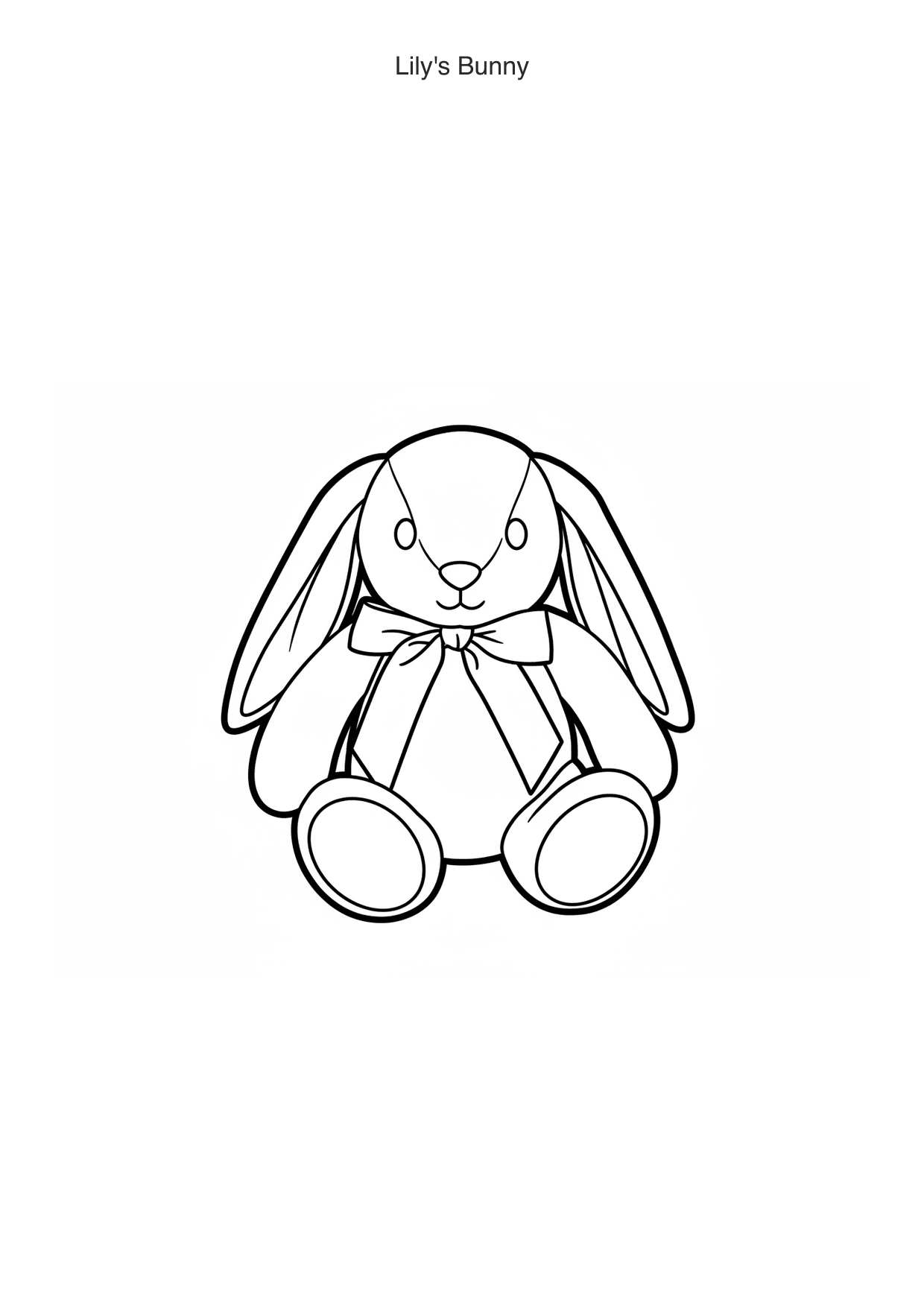
Add a short title if you want a name or occasion above the picture. This adds text to the exported page; it does not redraw the subject or put editable lettering inside the drawing.
3. Choose PDF for a page, PNG for an image
- PDF: start here for printing
- Export a PDF to keep the selected page size in a document. Open the downloaded file in a PDF viewer and check the print preview before printing.
- PNG: useful when another app needs an image
- Export a PNG to use the page as an image file. An image viewer or print service may resize or crop it, so check the final layout there. A PNG alone does not set your printer’s paper setting.
Both exports contain the rendered drawing. Neither turns the lines into editable vector shapes. Enlarging a small or soft result will not reveal extra detail.
4. Print one page before making copies
- Open the saved file and confirm the drawing and title are present.
- Match A4 or Letter in the print dialog to the paper in the tray.
- Check that all four edges fit in the preview. Use fit-to-page if the printer clips the border.
- Print one copy and check line clarity and the size of the coloring spaces.
- Keep the original photo and download until you are happy with the printed page.
Printers have different unprintable margins. PicCrayon prepares a file; it does not control your printer or order physical copies.
If the print looks wrong
- The drawing is cropped
- Check paper size, orientation and the print preview. Disable automatic cropping in your image viewer, or try the PDF export with fit-to-page.
- The page has too many tiny marks
- Return to the studio and try a lower detail level or a less cluttered source photo. Printing at a larger size cannot remove unwanted lines.
- The title is missing or outdated
- Check the title field and export again after changing it. Open the new file instead of printing an earlier download.
Need a better source photo? Read the pet photo guide →
Choose a photo and export your page →